In this post, we'll walk through three things:
- how to set it up
- a few early play-arounds
- and where it gets more useful inside real workflows like e-commerce and website building
1. How to set up image generation in GenseeAI
Getting started is simple.
To enable image generation:
- Go to Models in the left sidebar
- Add your own image model API key
- Click Continue
- Go back to Chat and start Image Mode
That's it.
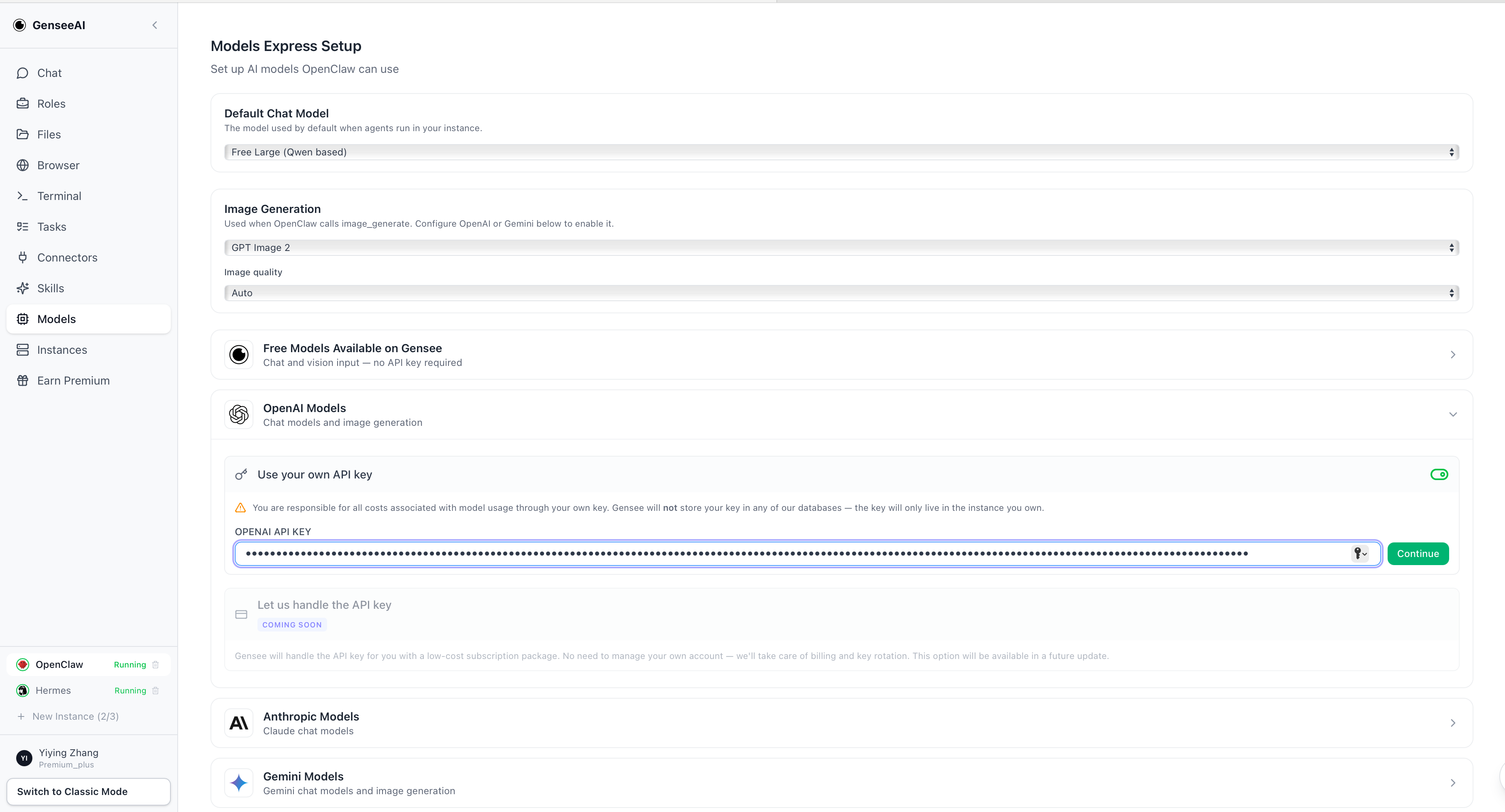
Once your API is connected, you can start generating images directly inside GenseeAI instead of switching out to a separate tool.
You can also choose the model, size, and quality depending on what kind of output you want and how you want to manage usage.
Image generation works in both OpenClaw and Hermes instances, and is available on both desktop and mobile.
2. A few early play-arounds
Before getting into larger workflows, we tested a few simple examples to see how image generation feels inside GenseeAI.
These are not meant to be the only use cases. They are just early ways to explore what becomes possible once image generation stays inside the same environment.
Virtual try-on
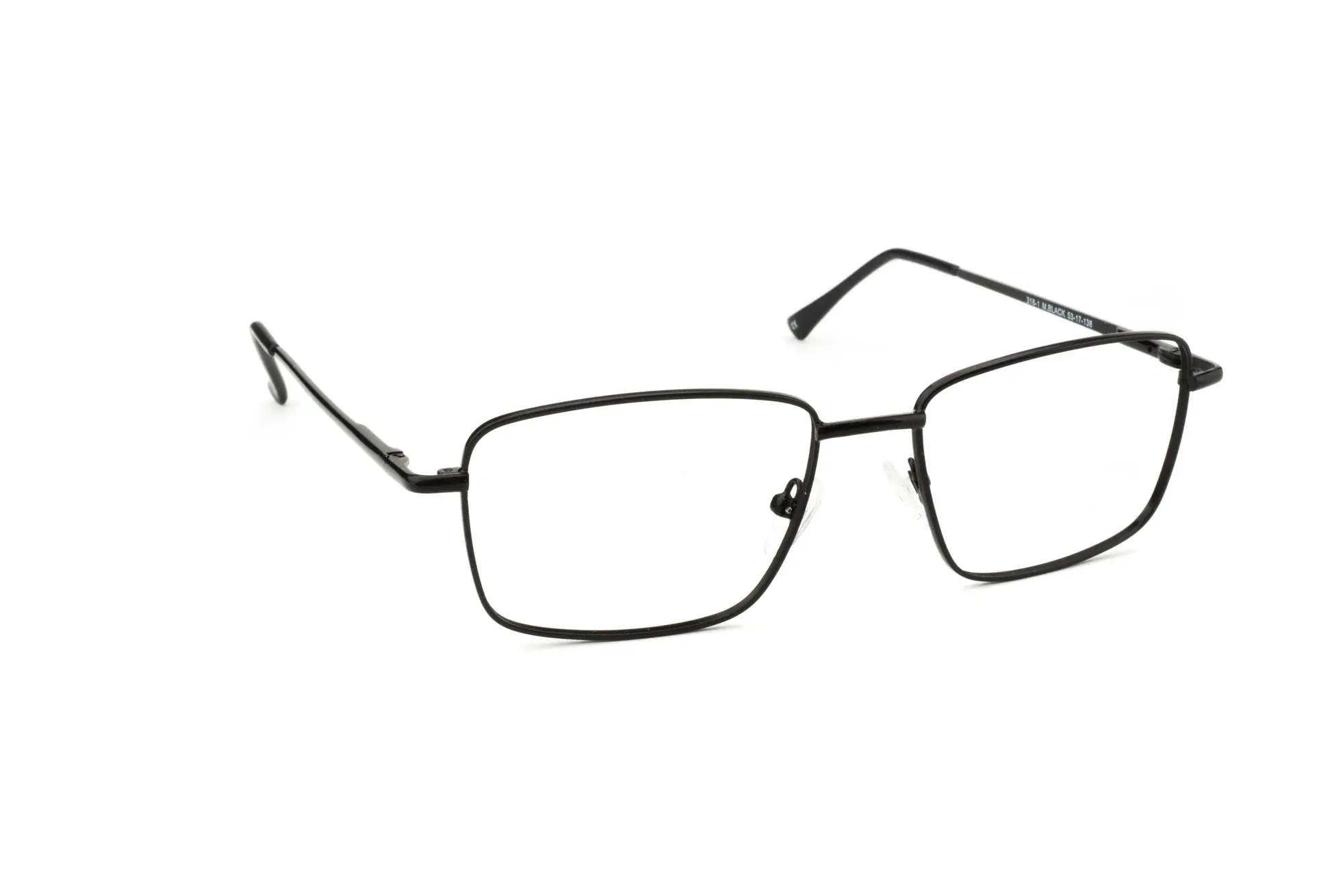
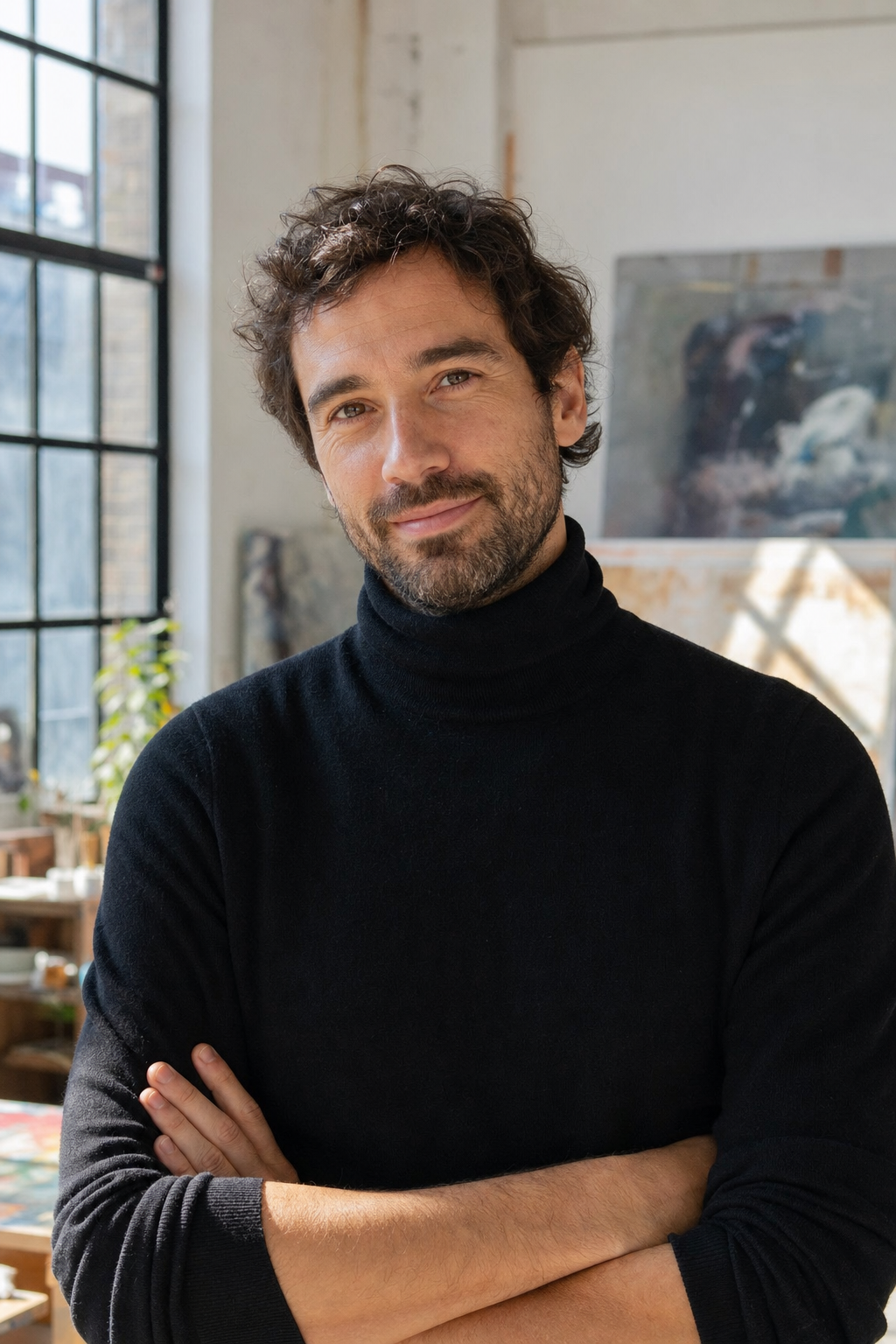
One test was a simple virtual try-on flow.
We uploaded a pair of glasses and a portrait, then generated a realistic try-on result.
This is a useful example of image-to-image generation. The point is not just that it can modify an image, but that it can do so as part of a broader task flow.

Flyer / poster creation
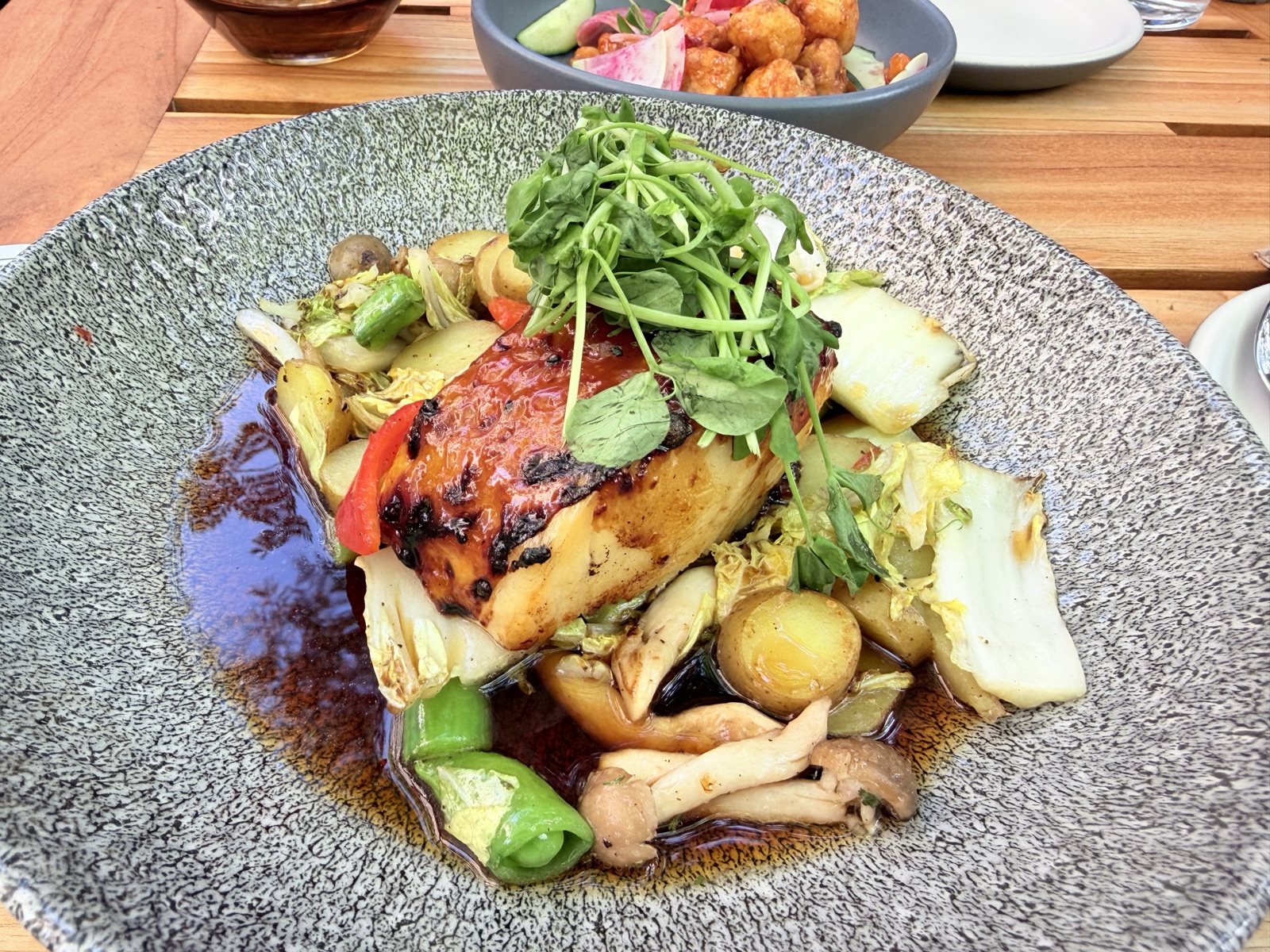
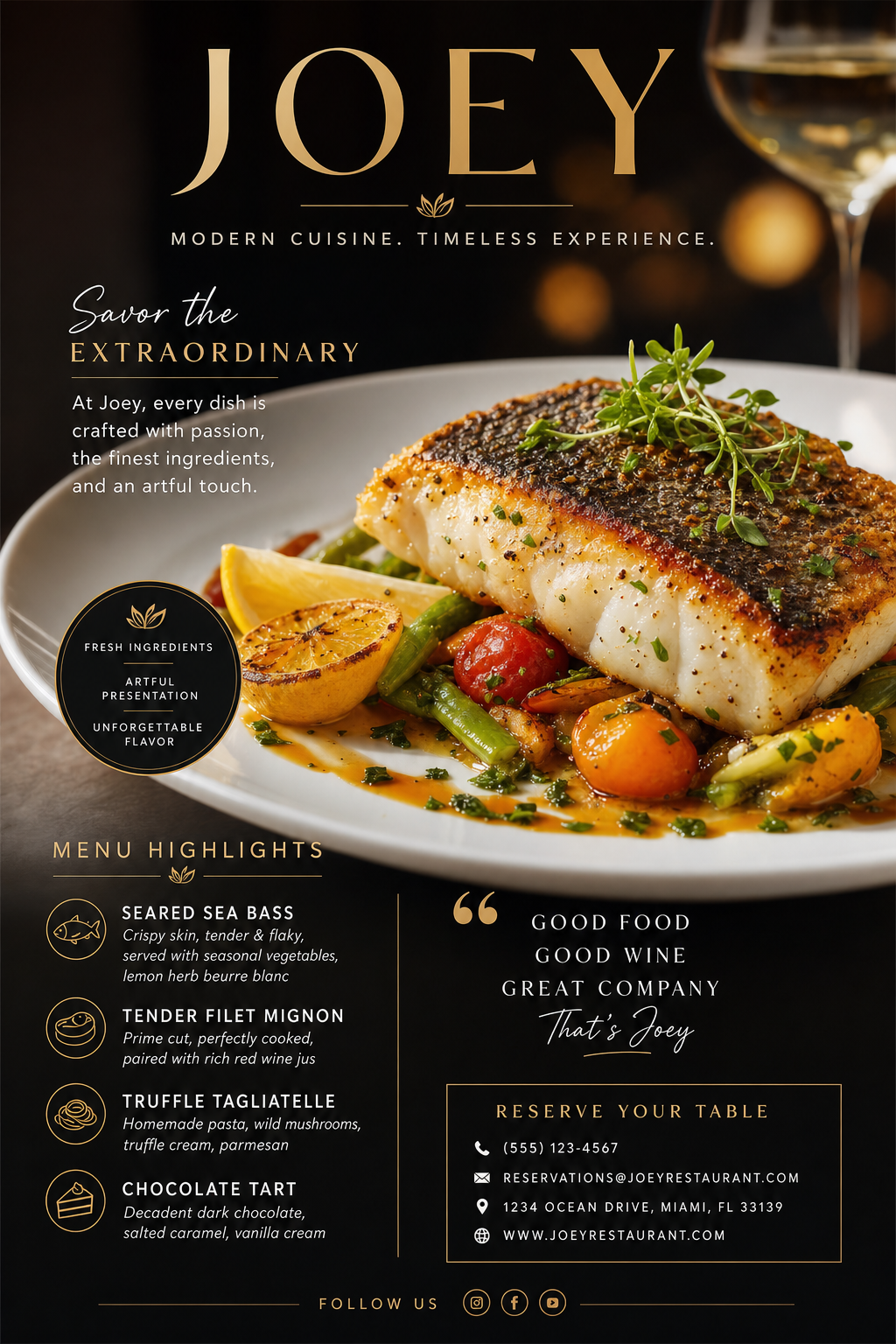
We also tested turning a real lunch photo into a restaurant flyer.
This is a good example of how a raw real-world input can become a more polished marketing asset in the same workflow.
Background change
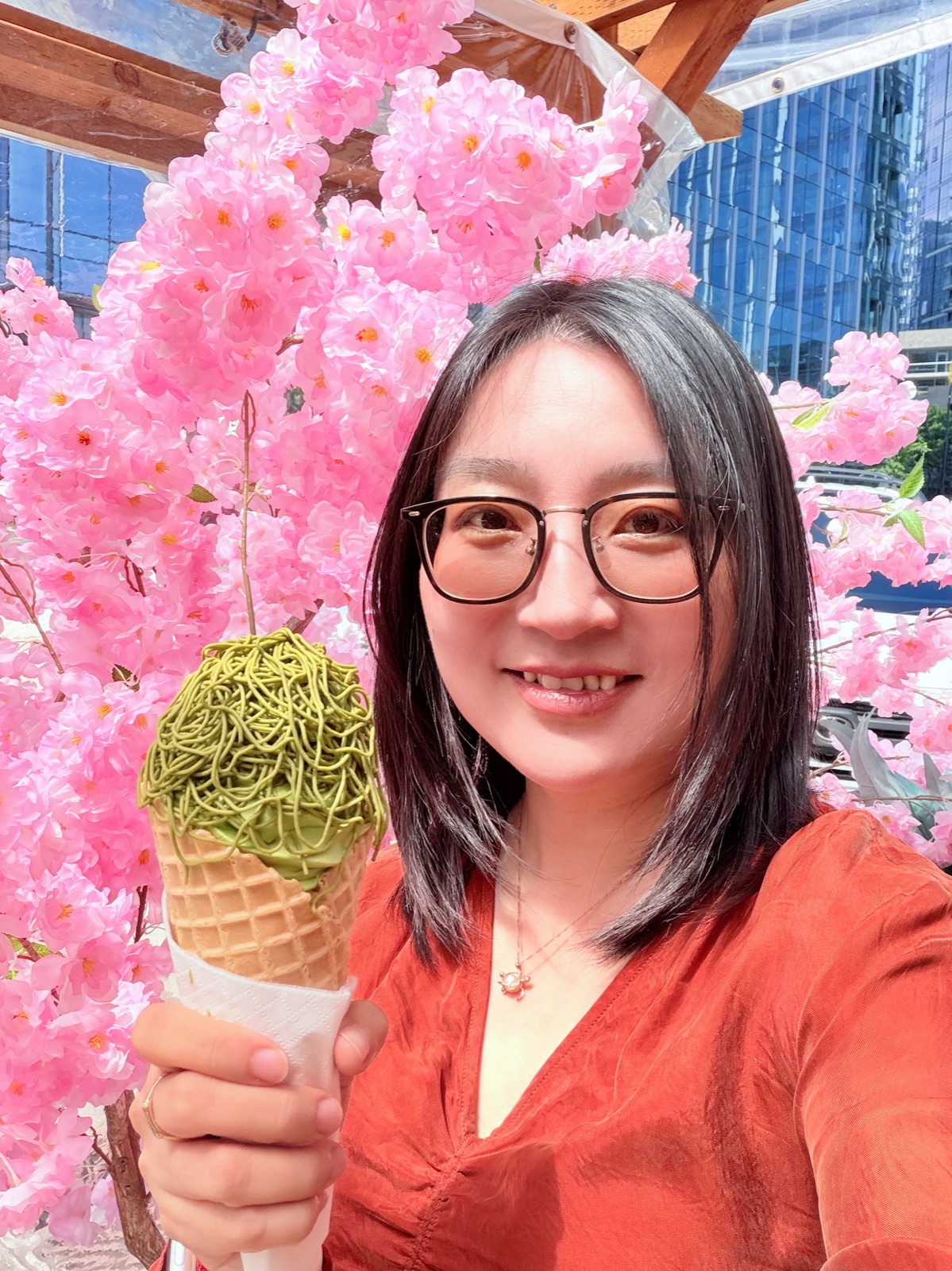
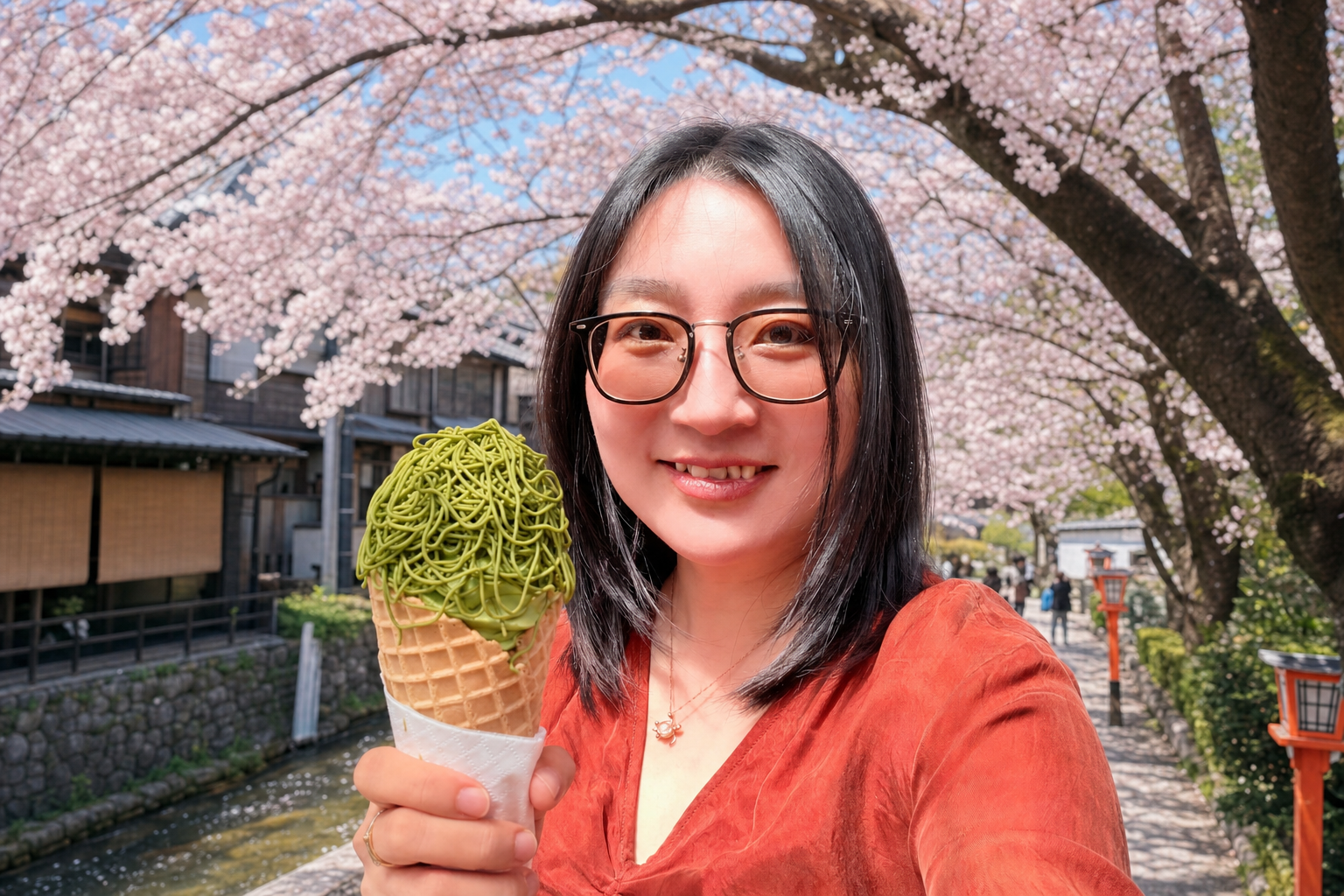
Another test was changing a selfie background into a Japan cherry blossom landscape.
Again, the interesting part is not just that the image can be edited. It is that these edits can now happen inside the same broader workflow instead of in a separate image tool.
These early tests matter because they show that image generation is not limited to one kind of prompt. It can support both text-to-image and image-to-image flows, depending on what the task needs.
3. Where it gets more useful: inside workflows
The most interesting part for us is not image generation on its own.
It is image generation inside a workflow.
That is where it becomes more than just an output generator.
Instead of:
- stopping what you are doing
- opening another image tool
- generating something there
- downloading it
- and manually reconnecting it to the task
you can now generate images as part of the same work you are already doing.
We think this gets especially useful in e-commerce and website building.
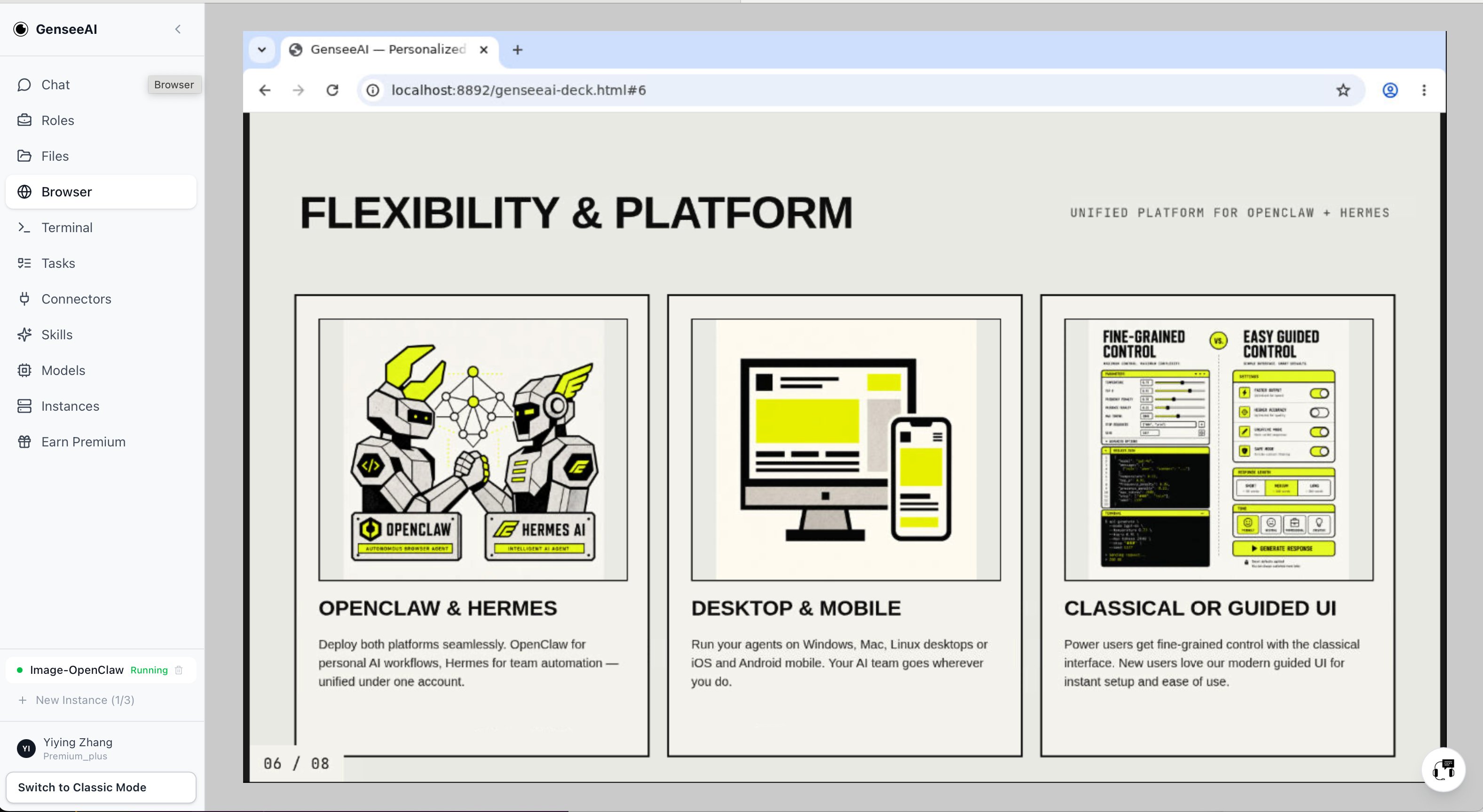
Slide creation workflows
If you are working inside a slide creation workflow, image generation can support work like:
- deck cover visuals
- section images
- charts / figures / supporting visuals
- concept illustrations
- on-brand presentation assets
For example, if you are building a presentation, you often need more than text and structure. You need visuals that fit the story of the deck and help each section land more clearly. That is much more useful than generating "an image" in isolation, because it directly supports the presentation workflow itself.
The image is not the final goal; it is part of helping the deck communicate better.
Here's one example we made with GenseeAI for GenseeAI itself: GenseeAI deck
Website building workflows
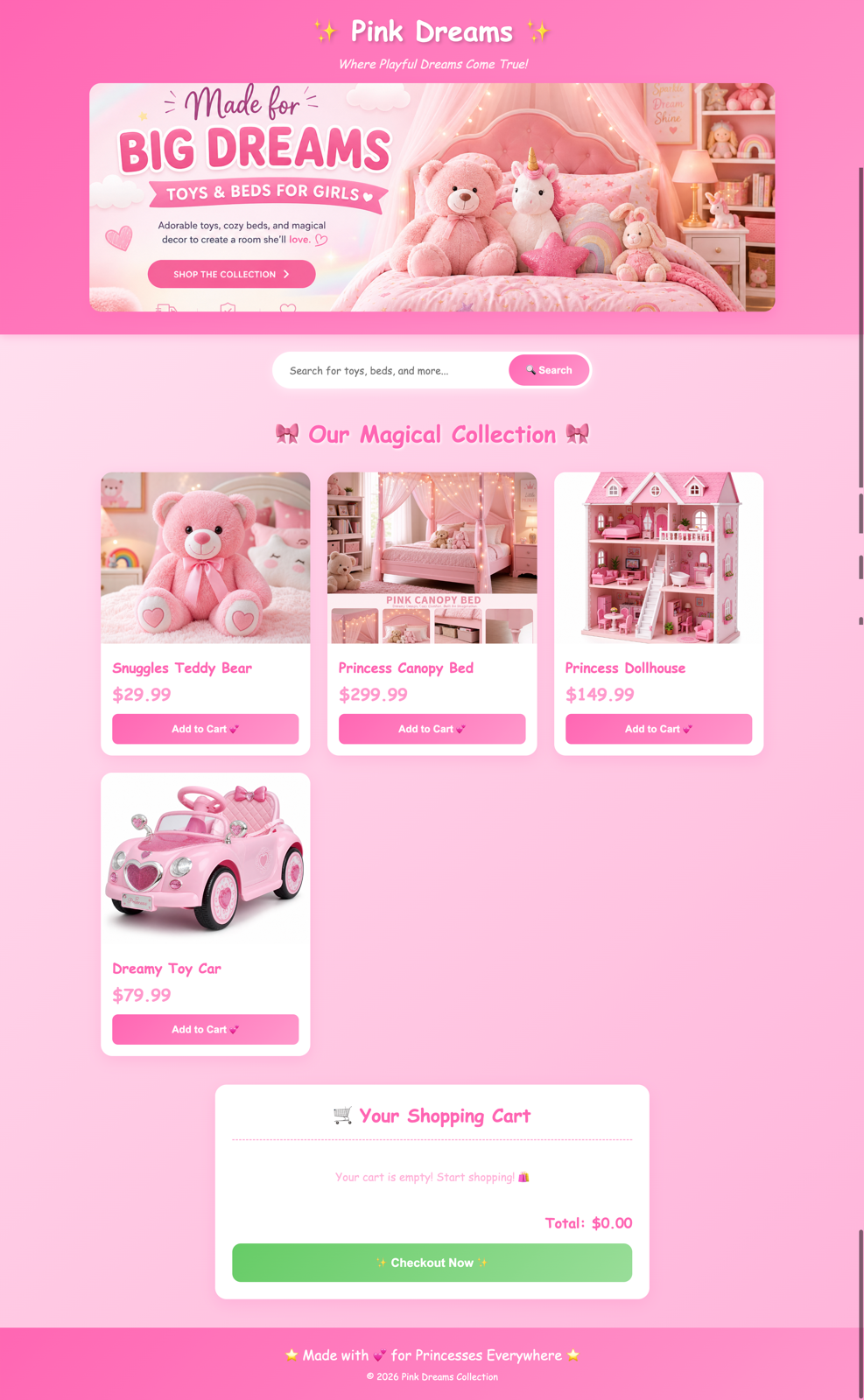
The same goes for website building.
If you are already using GenseeAI to draft a page, write content, or build HTML, image generation becomes more useful when it can stay connected to that same task.
For example, you can now create:
- blog visuals
- website banner images
- section graphics
- supporting visuals for landing pages
instead of leaving the workflow and treating images as a separate step.
This makes website-building tasks feel much more connected. The words, structure, HTML, and visuals can now live much closer together.
Why text-to-image and image-to-image both matter
Another important part of this launch is that the system supports both:
- text-to-image
- image-to-image
That matters because real workflows need both.
Sometimes you start from a prompt.
Sometimes you start from an existing photo, product image, screenshot, or draft asset and want to transform it.
A workflow system should support both directions.
Otherwise users still end up splitting their work between multiple tools depending on what kind of image task they are doing.
More than one-off generation
The bigger point here is not just that GenseeAI can now generate images.
It is that users can now:
- set it up quickly
- experiment with it in practical ways
- and start using it inside real tasks, not just in isolation
That makes the feature much more useful for the kinds of work people are already doing in GenseeAI.
We think the most obvious starting points right now are:
- e-commerce
- website building
- slide creation
- social posting
- research visuals
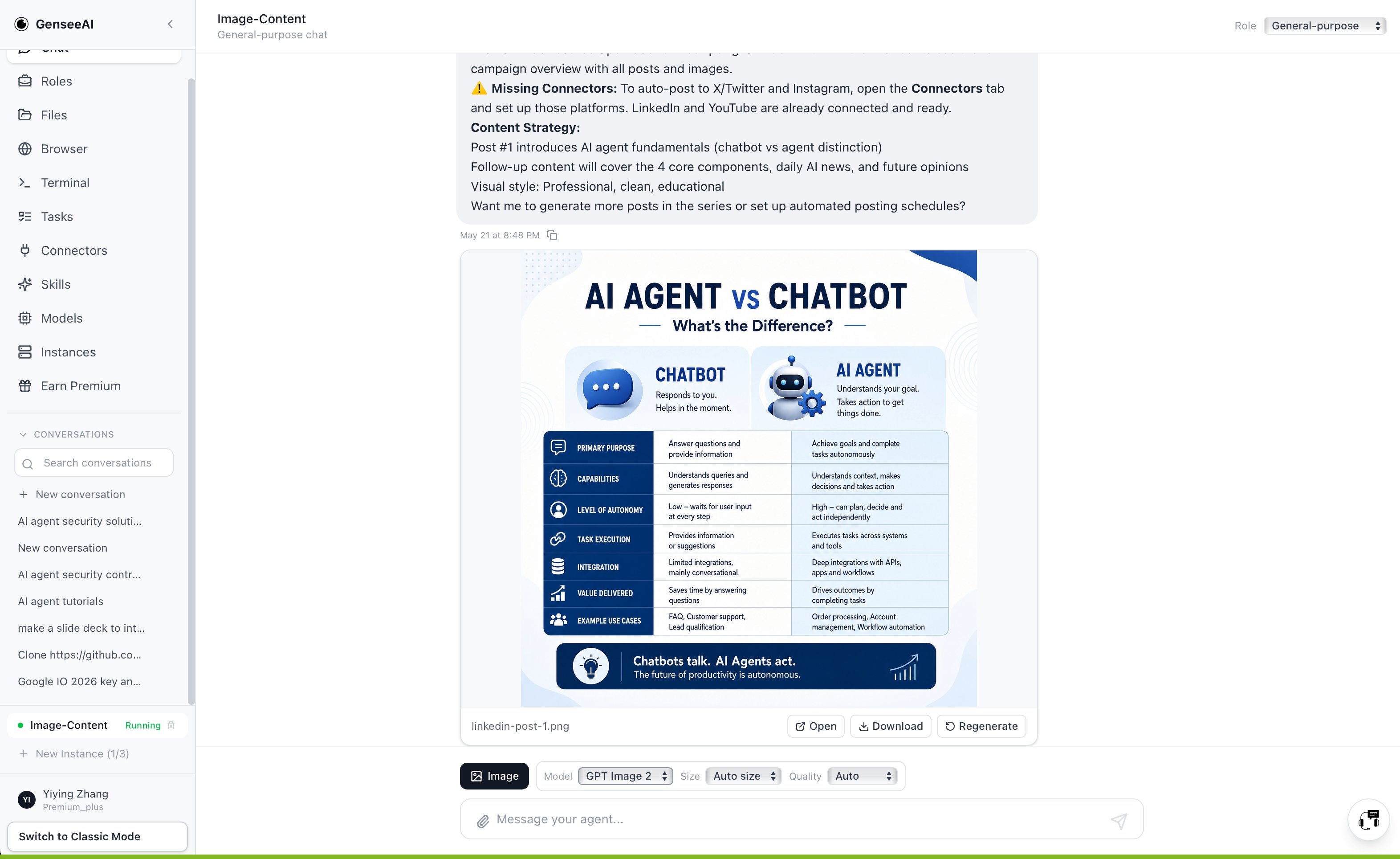
But we also expect users to find many more.